
App
Download and install the Pitch59 app. Go to the app store and search Pitch59 or click here.
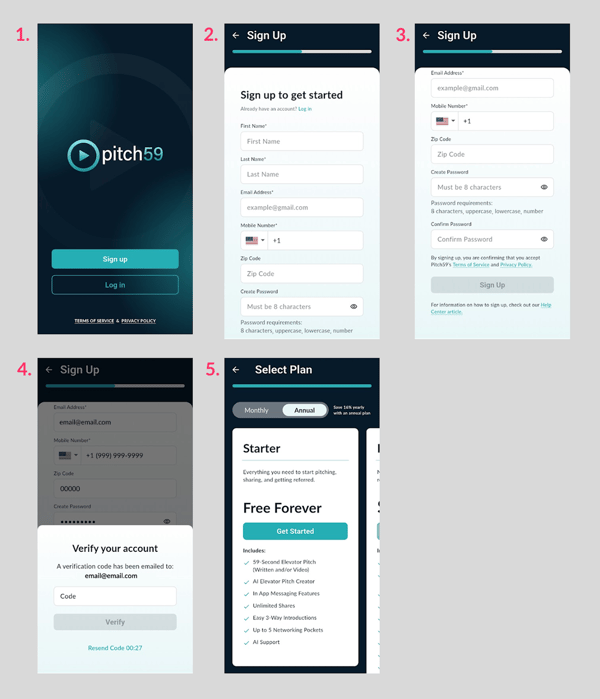
Fill in all the required information.
- Select SIGN UP
- Fill in all the required information. You will be emailed an OTP code that you will need.
- Fill in your first and last name,
- Fill in your email,
- Create a password.
- Your password must contain at least 8 characters with at least one uppercase letter, a lowercase letter, and a number.
- You will be emailed an OTP code that you will need.
- Enter the OTP that was emailed to you in order to finalize your account. If you need to resend the OTP code, there will be a button to do so.
- If you can’t find the email, please check your spam folder.
- Select which plan you’d like for your PitchCard. Unless the Starter plan is selected, you will be prompted to enter your payment information.
- Accept Pitch59's Terms of Service and Privacy Policy by checking the box.
For detailed instructions on completing your PitchCard, check out this article PitchCard Creation: App Setup.
Desktop
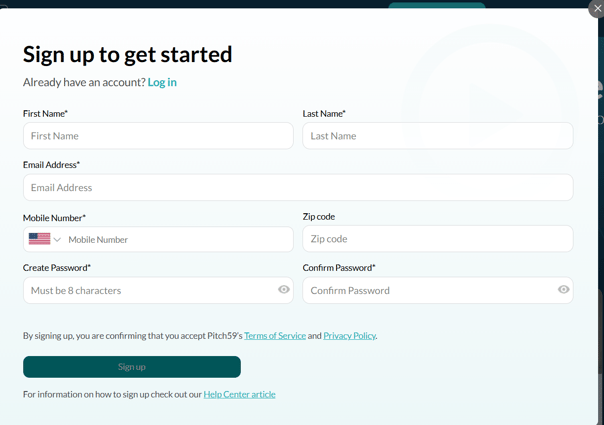
- Go to Pitch59.com and click "Sign up" in the upper right-hand corner of the screen.
- Fill in all the required information.
- Your password must contain at least 8 characters with at least one uppercase letter, a lowercase letter, and a number.
- All fields are required except Zip code. An OTP code will be sent to your email after you complete this signup form. You will need the OTP code to finalize your account.
- If you can’t find the email containing your OTP code, please check your spam folder.
- When you have completed the form, click the "Sign Up" button.
- Check your email for your OTP code.
- Enter the code.
After the code has been entered, you will be automatically logged into your account.
For detailed instructions on completing your PitchCard, check out this article PitchCard Creation: Desktop Setup.
Mobile Web


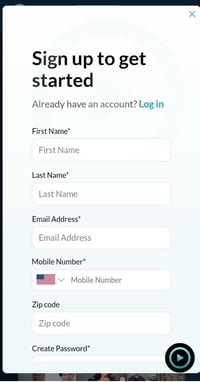
- Go to Pitch59.com
-
Tap on the 3 lines in the upper right-hand corner.
- From there, click Sign Up and fill out the required information.
- Your password must contain at least 8 characters with at least one uppercase letter, a lowercase letter, and a number.
- All fields are required except Zip code. An OTP code will be sent to your email after you complete this signup form. You will need the OTP code to finalize your account.
- If you can’t find the email containing your OTP code, please check your spam folder.
- When all information is filled in, enter your OTP code to finish your account setup.
- You will be taken directly to your account.
*Note: Web pages and forms may appear slightly different due to differences in display characteristics from one mobile device to another.
For detailed instructions on completing your PitchCard, check our article:
PitchCard Creation